Software comparison
Geomagic for SOLIDWORKS vs Geomagic Design X
Both come from Geomagic and both turn scans into SOLIDWORKS models. The add-in works inside the SOLIDWORKS window; Design X is a separate program that builds the model and sends it across. The real question is whether the add-in is enough for your parts.
Key takeaways
- Geomagic for SOLIDWORKS runs inside SOLIDWORKS 2021 to 2027, in every desktop edition, but not in 3DEXPERIENCE SOLIDWORKS.
- Design X is a separate program whose LiveTransfer sends the feature tree to SOLIDWORKS, NX, Creo, AutoCAD or Inventor.
- The add-in imports data or scans directly with most 3D scanners; Design X reads data from any scanner, with direct integration in Plus and Pro.
- The add-in checks deviation while you model; the Design X Accuracy Analyzer is basic in Go and detailed in Plus and Pro.
- Both follow the same maker requirements: 64-bit Windows 10 or later, 8 GB of RAM at minimum and 32 GB or more recommended.
Which should you choose: Geomagic for SOLIDWORKS or Geomagic Design X?
Choose Geomagic for SOLIDWORKS when every model your team makes ends in SOLIDWORKS desktop and the scan is the starting point for a design: it adds a Geomagic tab to SOLIDWORKS 2021 to 2027 with scan cleanup, feature extraction, automatic surfacing and deviation checks as you build. Choose Geomagic Design X when reverse engineering is a job in itself, or when your models must also reach NX, Creo, AutoCAD or Inventor: it is a standalone program with region groups, modeling wizards, the Accuracy Analyzer and three plans, and LiveTransfer sends the finished feature tree to your CAD system. The add-in keeps everything in one window; Design X gives reverse engineering a program of its own.
Choose Geomagic for SOLIDWORKS if…
- Your team designs only in SOLIDWORKS desktop, version 2021 to 2027.
- You want the scan, the rebuilt features and the deviation check in the SOLIDWORKS window.
- You design around scans: orthotics, grips or covers that must fit a body or an existing product.
- Your parts rebuild well from planes, cylinders, sketches and automatic surfaces.
Choose Geomagic Design X if…
- Your models must also reach NX, Creo, AutoCAD or Inventor.
- Reverse engineering is a regular job, with castings, molds or body panels to rebuild.
- You want guided wizards, Auto Sketch, Exact Surfacing or CAD Correction from the Pro plan.
- You want to choose a plan, Go, Plus or Pro, to match the most complex part you rebuild.
How do the add-in and Design X differ, row by row?
The first four rows carry the decision. They show where you work, where the model ends up, and which SOLIDWORKS releases each one supports: the add-in lives in SOLIDWORKS 2021 to 2027, while Design X stands apart and sends its feature tree to five CAD systems. The middle rows show that both read scans from a wide range of scanners and both check the model against the scan; the difference is in how far the modeling tools go. The last rows show that they share one maker's workstation figures, so the same computer runs either. Every cell comes from our records for the two programs.
| Specification | Geomagic for SOLIDWORKS | Geomagic Design X |
|---|---|---|
| What it does | Scan-to-CAD add-in that runs inside SOLIDWORKS | Reverse engineering software that turns 3D scans into editable CAD |
| Where you work | Adds its own tab to SOLIDWORKS | Design X sits between your scanner and your CAD system |
| Where the model ends up | From a 3D scan to a SOLIDWORKS model without leaving SOLIDWORKS | SOLIDWORKS, NX, Creo, AutoCAD, Inventor |
| SOLIDWORKS support | 2021 to 2027; all desktop editions; does not run in 3DEXPERIENCE SOLIDWORKS | Version 2026.1 supports SOLIDWORKS 2026; older SOLIDWORKS releases can lose some features in transfer |
| Scan data it takes | Import data, or scan directly with most 3D scanners on the market | Data from any scanner; Direct scanner and probe integration (Design X Plus, Design X Pro) |
| How it builds the model | Extract planes, cylinders and sketches, and fit automatic surfaces to organic shapes | Fits regions, sketches and surfaces to the scan, and builds solids with a parametric history tree |
| Checking the model against the scan | Deviation analysis runs while you model | Basic deviation analysis (Design X Go); Detailed (Design X Plus, Design X Pro) |
| Large scans | Saves data sets larger than 2 GB | Built its point cloud and mesh tools for very large data sets |
| Current version | 2026.1.x | 2026.1.0 |
| Operating system | Minimum Windows 10 64-bit or later; recommended Windows 11 64-bit | Minimum Windows 10 64-bit or later; recommended Windows 11 64-bit |
Geomagic for SOLIDWORKS vs Geomagic Design X: side by side
What it does
- Geomagic for SOLIDWORKS
- Scan-to-CAD add-in that runs inside SOLIDWORKS
- Geomagic Design X
- Reverse engineering software that turns 3D scans into editable CAD
Where you work
- Geomagic for SOLIDWORKS
- Adds its own tab to SOLIDWORKS
- Geomagic Design X
- Design X sits between your scanner and your CAD system
Where the model ends up
- Geomagic for SOLIDWORKS
- From a 3D scan to a SOLIDWORKS model without leaving SOLIDWORKS
- Geomagic Design X
- SOLIDWORKS, NX, Creo, AutoCAD, Inventor
SOLIDWORKS support
- Geomagic for SOLIDWORKS
- 2021 to 2027; all desktop editions; does not run in 3DEXPERIENCE SOLIDWORKS
- Geomagic Design X
- Version 2026.1 supports SOLIDWORKS 2026; older SOLIDWORKS releases can lose some features in transfer
Scan data it takes
- Geomagic for SOLIDWORKS
- Import data, or scan directly with most 3D scanners on the market
- Geomagic Design X
- Data from any scanner; Direct scanner and probe integration (Design X Plus, Design X Pro)
How it builds the model
- Geomagic for SOLIDWORKS
- Extract planes, cylinders and sketches, and fit automatic surfaces to organic shapes
- Geomagic Design X
- Fits regions, sketches and surfaces to the scan, and builds solids with a parametric history tree
Checking the model against the scan
- Geomagic for SOLIDWORKS
- Deviation analysis runs while you model
- Geomagic Design X
- Basic deviation analysis (Design X Go); Detailed (Design X Plus, Design X Pro)
Large scans
- Geomagic for SOLIDWORKS
- Saves data sets larger than 2 GB
- Geomagic Design X
- Built its point cloud and mesh tools for very large data sets
Current version
- Geomagic for SOLIDWORKS
- 2026.1.x
- Geomagic Design X
- 2026.1.0
Operating system
- Geomagic for SOLIDWORKS
- Minimum Windows 10 64-bit or later; recommended Windows 11 64-bit
- Geomagic Design X
- Minimum Windows 10 64-bit or later; recommended Windows 11 64-bit
Specs checked:
What does scan-to-CAD look like in each program?
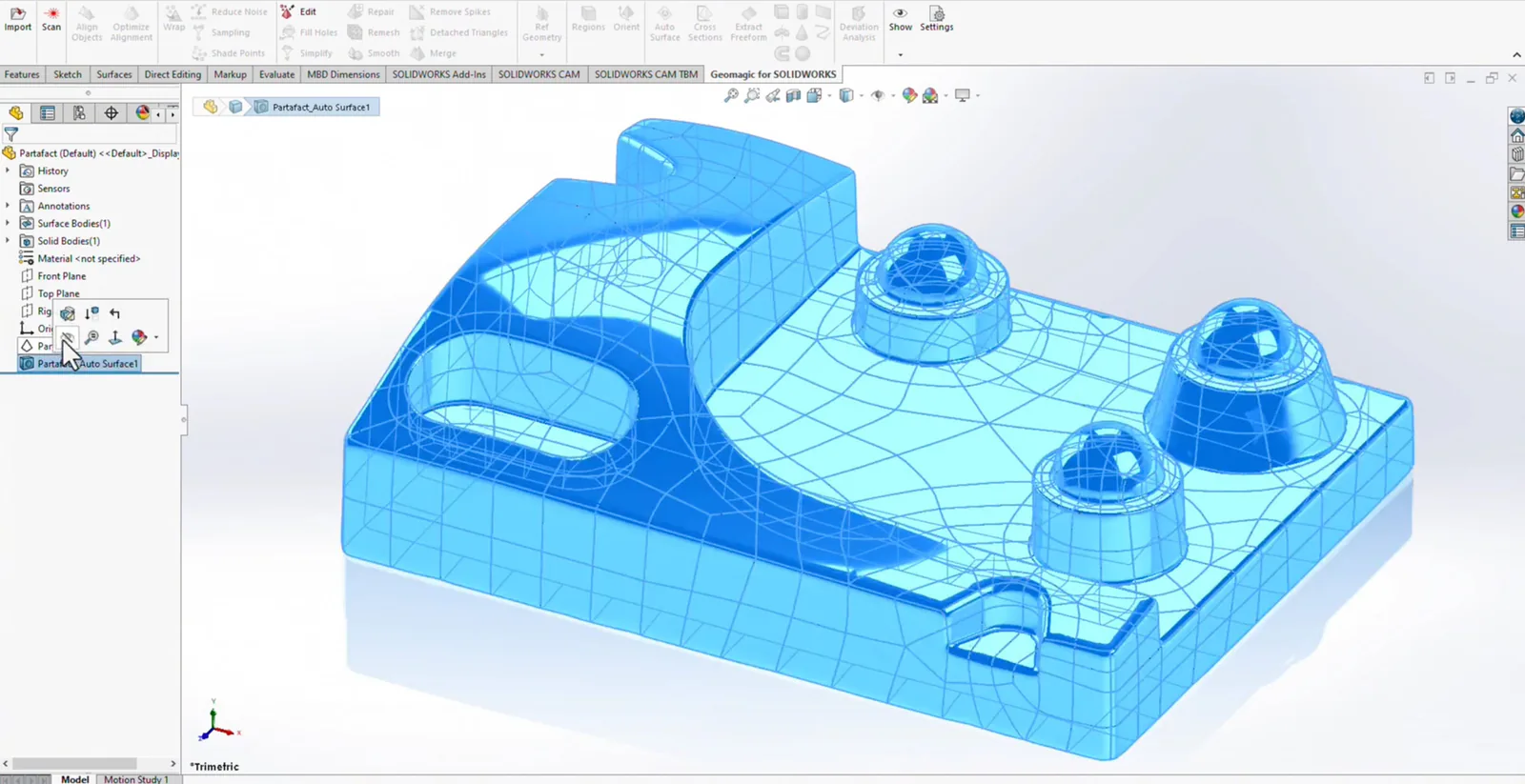
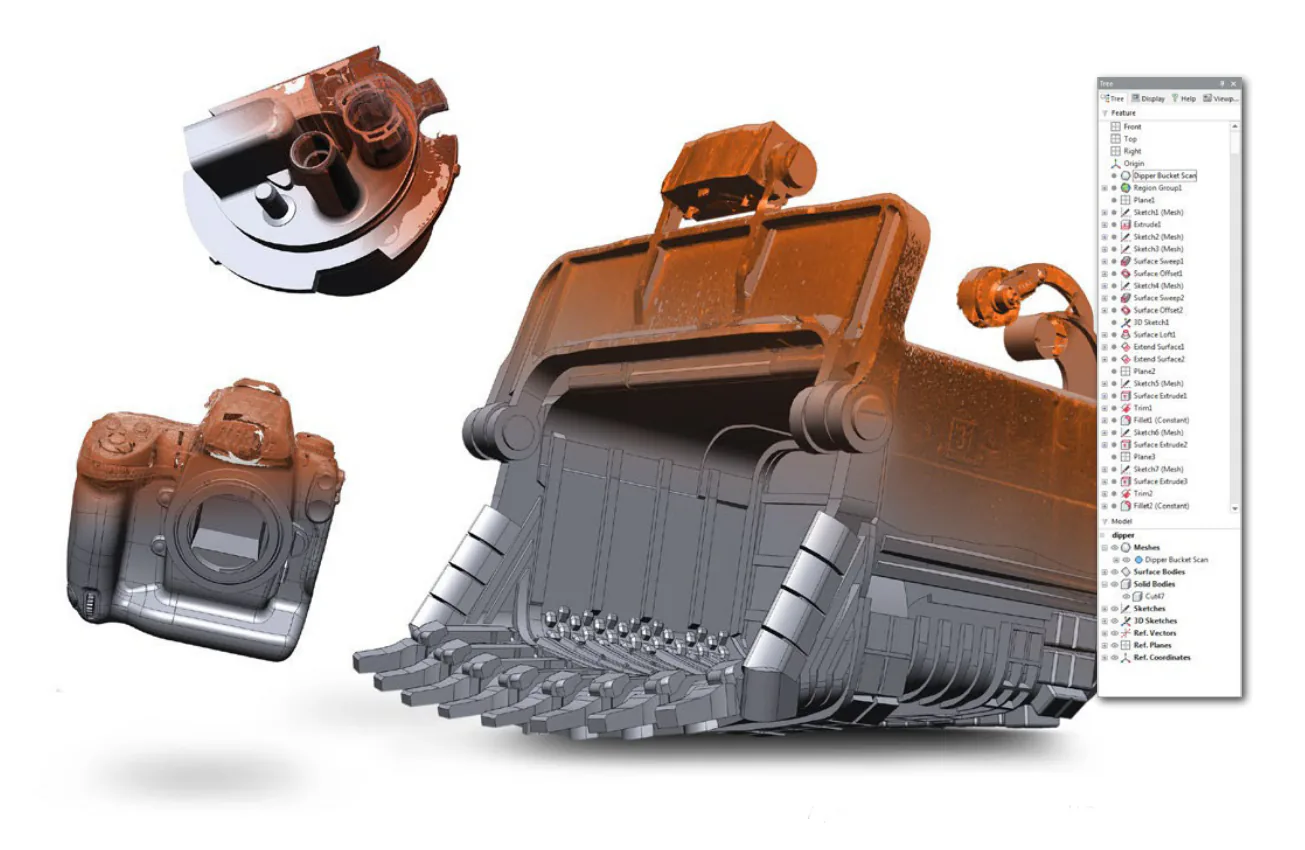
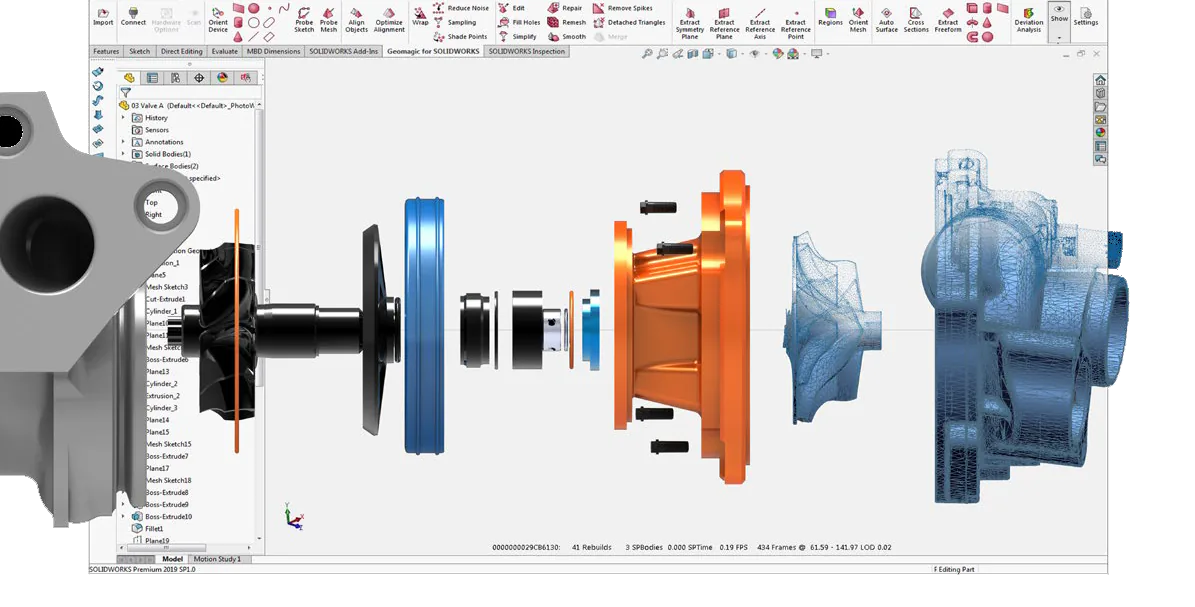
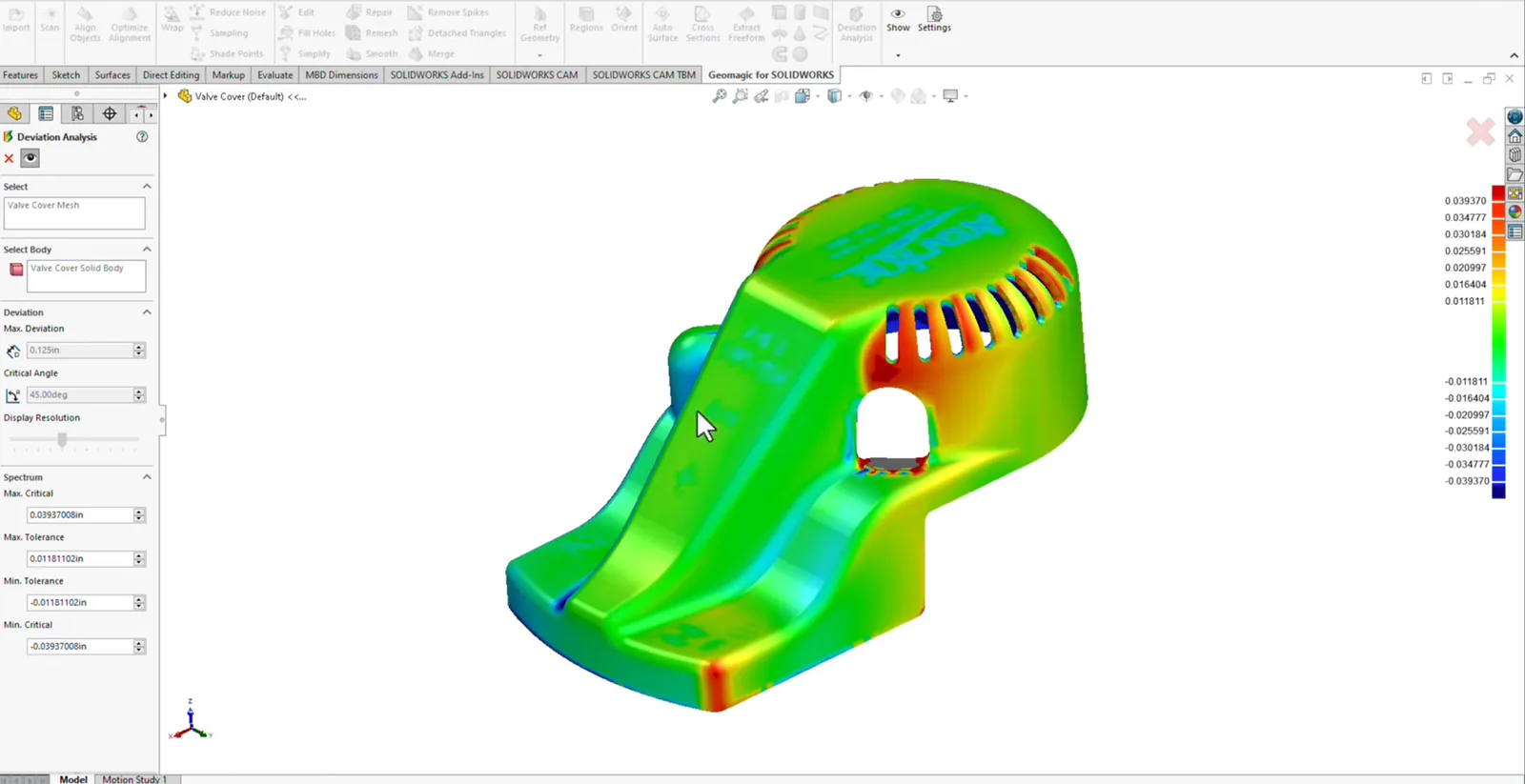
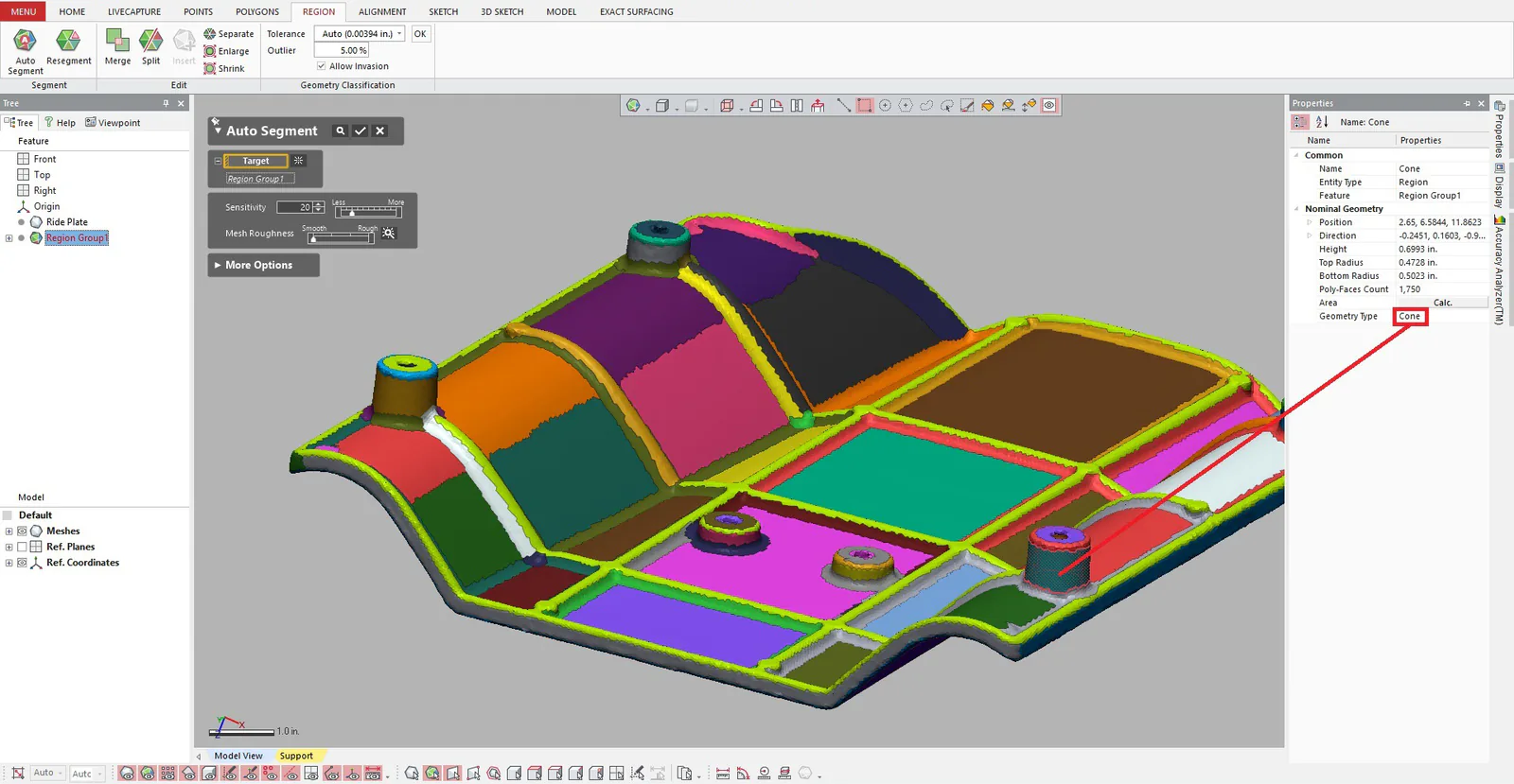
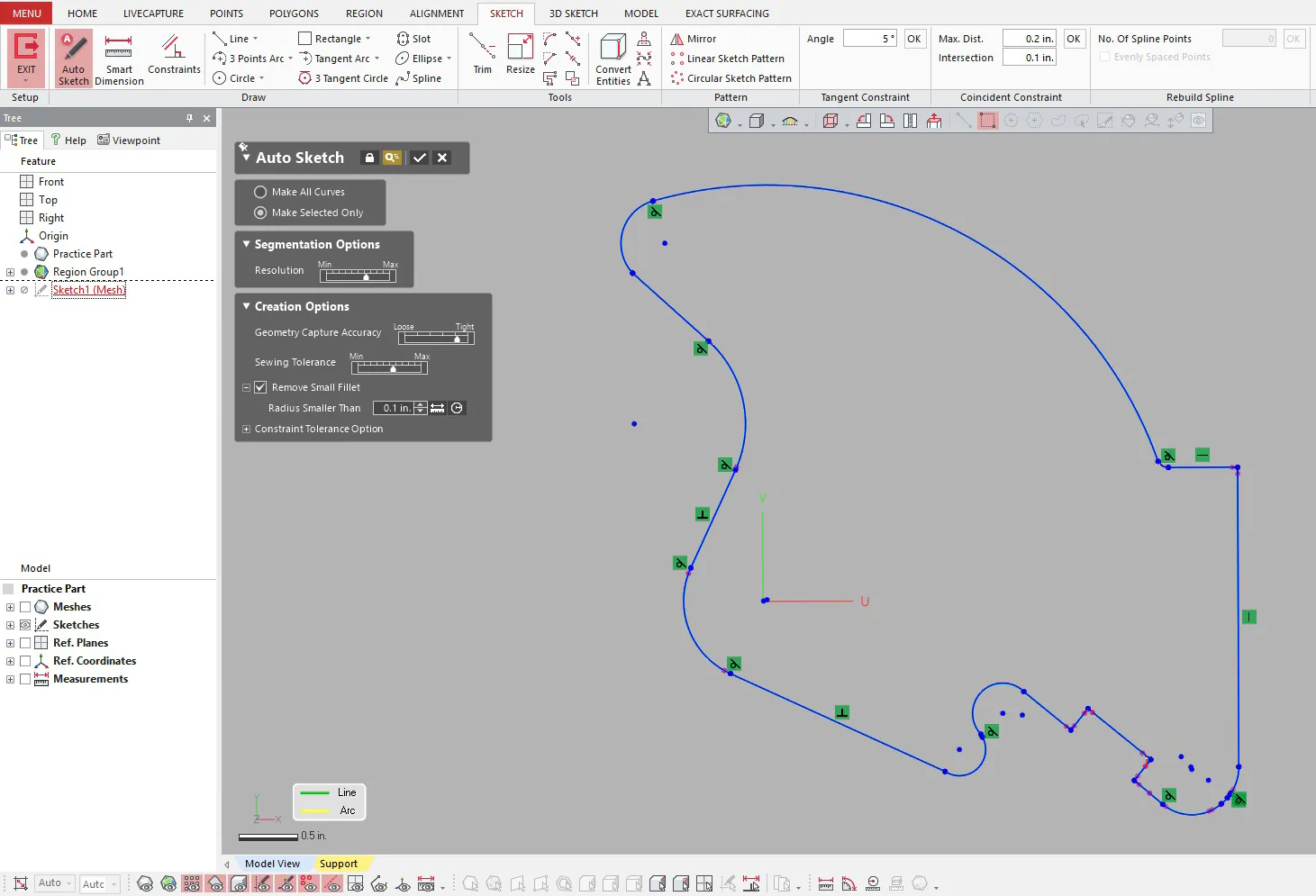
On the add-in side, both screens are SOLIDWORKS itself: an exploded valve with its scanned mesh at the right and rebuilt CAD parts at the left, under the Geomagic tab, and a valve cover colored by its distance from the scan. On the Design X side, the program has its own modeling window: Auto Segment colors a scanned ride plate into region groups and names one boss a cone, and Auto Sketch turns a section into a constrained profile of lines and arcs. The add-in keeps the scan next to your SOLIDWORKS model; Design X gives the scan a modeler of its own.
Geomagic for SOLIDWORKS
Geomagic Design X
Is the add-in enough, or do I need the standalone program?
The add-in is enough when three things hold: your team models only in SOLIDWORKS desktop, version 2021 to 2027; your parts rebuild well from planes, cylinders, sketches and automatic surfaces; and checking deviation as you go is the accuracy control you need. Design X is the one to look at when any of those breaks: models must also reach NX, Creo, AutoCAD or Inventor, parts mix many exact features with freeform areas, or you want modeling wizards, Auto Sketch, Exact Surfacing and CAD Correction from the Pro plan. Pick your hardest part for the demo and try the add-in on it first.
How does working in SOLIDWORKS differ from working in Design X?
With the add-in, scan processing, feature extraction and deviation analysis sit on a tab beside the usual SOLIDWORKS tools, so the mesh and the features you build from it stay in the same model and you never switch programs. Design X has its own modeling environment, laid out with an interface and feature names modeled on SOLIDWORKS, so SOLIDWORKS users recognize it. You build the part there, then LiveTransfer sends the whole feature tree, or single features, into SOLIDWORKS with their order and parent-child relationships, and you can pause and resume if one feature fails to rebuild.
Which SOLIDWORKS versions does each one need?
Geomagic for SOLIDWORKS 2026.1 works in SOLIDWORKS 2021 to 2027, in every desktop edition, and the maker supports and validates it on the three most recent SOLIDWORKS versions. It does not run in 3DEXPERIENCE SOLIDWORKS. Design X runs on its own; its 2026.1 LiveTransfer supports SOLIDWORKS 2026, older SOLIDWORKS releases can lose some features in transfer, and the Pro plan imports native SOLIDWORKS files from 98 to 2026. If your team is on an older release or on 3DEXPERIENCE, tell us before you choose.
What do the Design X plans add to the toolset?
Design X comes in three plans, and the plan sets the depth. Go covers point cloud and mesh editing, essential solid and surface modeling, basic deviation analysis and LiveTransfer. Plus adds direct scanner and probe integration, 3D mesh sketching, advanced modeling, auto-surfacing with selective surfacing and the detailed Accuracy Analyzer. Pro adds guided and automated wizards, advanced alignment, automatic regioning, Auto Sketch, Exact Surfacing, CAD Correction and CAD-native import and export. The add-in lists device integration, mesh and point cloud processing, automatic surfacing and real-time deviation analysis, so set it beside the plan your parts would need.
What do the two have in common?
More than the names suggest. Both follow one maker's requirements: Windows 10 64-bit at minimum and Windows 11 recommended, 8 GB of RAM at minimum and 32 GB or more recommended, an NVIDIA graphics card, and a three-button or 3D mouse, so one workstation runs either. Both offer the same 12 interface languages. Artec states that its scanners work with both, from the Micro II to the Ray II, and Creaform scans reach either one as standard mesh files. Both check your model against the scan, and both handle the large data sets that dense scans produce.
What else do buyers ask about Geomagic for SOLIDWORKS and Geomagic Design X?
Does Design X need SOLIDWORKS?
No. Design X is its own program with its own modeling environment, and it builds the complete model, history tree included, before anything leaves it. SOLIDWORKS is one of five CAD systems LiveTransfer reaches, with NX, Creo, AutoCAD and Inventor. Geomagic for SOLIDWORKS is the opposite: it is an add-in and runs only inside a SOLIDWORKS desktop installation, from version 2021 to 2027.
Does the add-in work with 3DEXPERIENCE SOLIDWORKS?
No. The maker's requirements guide for Geomagic for SOLIDWORKS 2026.1 lists 3DEXPERIENCE SOLIDWORKS as not supported, while every desktop edition from 2021 to 2027 is. The maker also supports and validates the add-in on the three most recent SOLIDWORKS versions only, so a current release is the safer setup. If your team works in 3DEXPERIENCE, tell us when you request a quote and we talk through the options.
Can I scan directly into either program?
Yes, with the right setup. The add-in imports data or scans directly with most 3D scanners on the market from its tab in SOLIDWORKS. Design X reads data from any scanner in every plan, and direct scanner and probe integration, capturing inside Design X, comes with the Plus and Pro plans. Artec scanners work with both. Tell us which scanner you own and we show the most direct route at a demo.
Will a SOLIDWORKS user find Design X hard to learn?
Design X was laid out with SOLIDWORKS users in mind: its interface and feature names are modeled on SOLIDWORKS. What is new is the scan side, such as region groups that sort a mesh into planes, cylinders, cones and freeform areas, and the Accuracy Analyzer that checks the model against the scan. With the add-in there is even less to learn, because its tools sit on one extra tab inside SOLIDWORKS. Training is part of what we offer with either program.
See Geomagic for SOLIDWORKS and Geomagic Design X on your own scans
Pick the part your SOLIDWORKS team finds hardest to model from a scan. We scan it where you work, rebuild it with the add-in inside SOLIDWORKS and again in Design X, and show you where each one gets you. Put both on your request and we will say whether we can show both in your area. On-site demos are available in most areas; ask when you request.